VFlow for Zoom
Bridging the gap between high-intent lead discovery and professional communication. VFlow automates insurance client meeting generation via secure Zoom endpoints.
Adding the Application
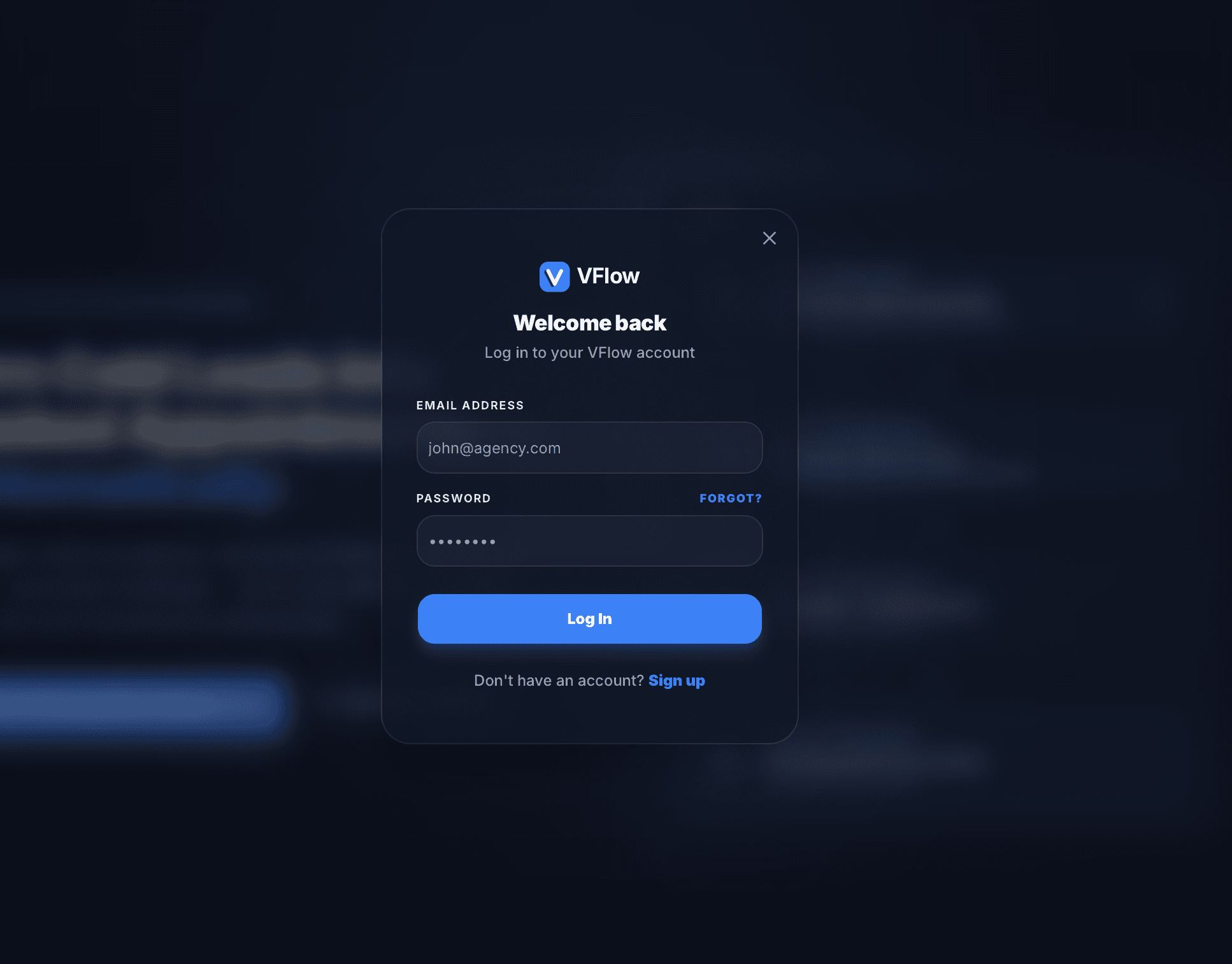
Login to VFlow
Access your professional dashboard at vflow.mlogicone.com. Our platform uses secure authentication to protect insurance agent data.
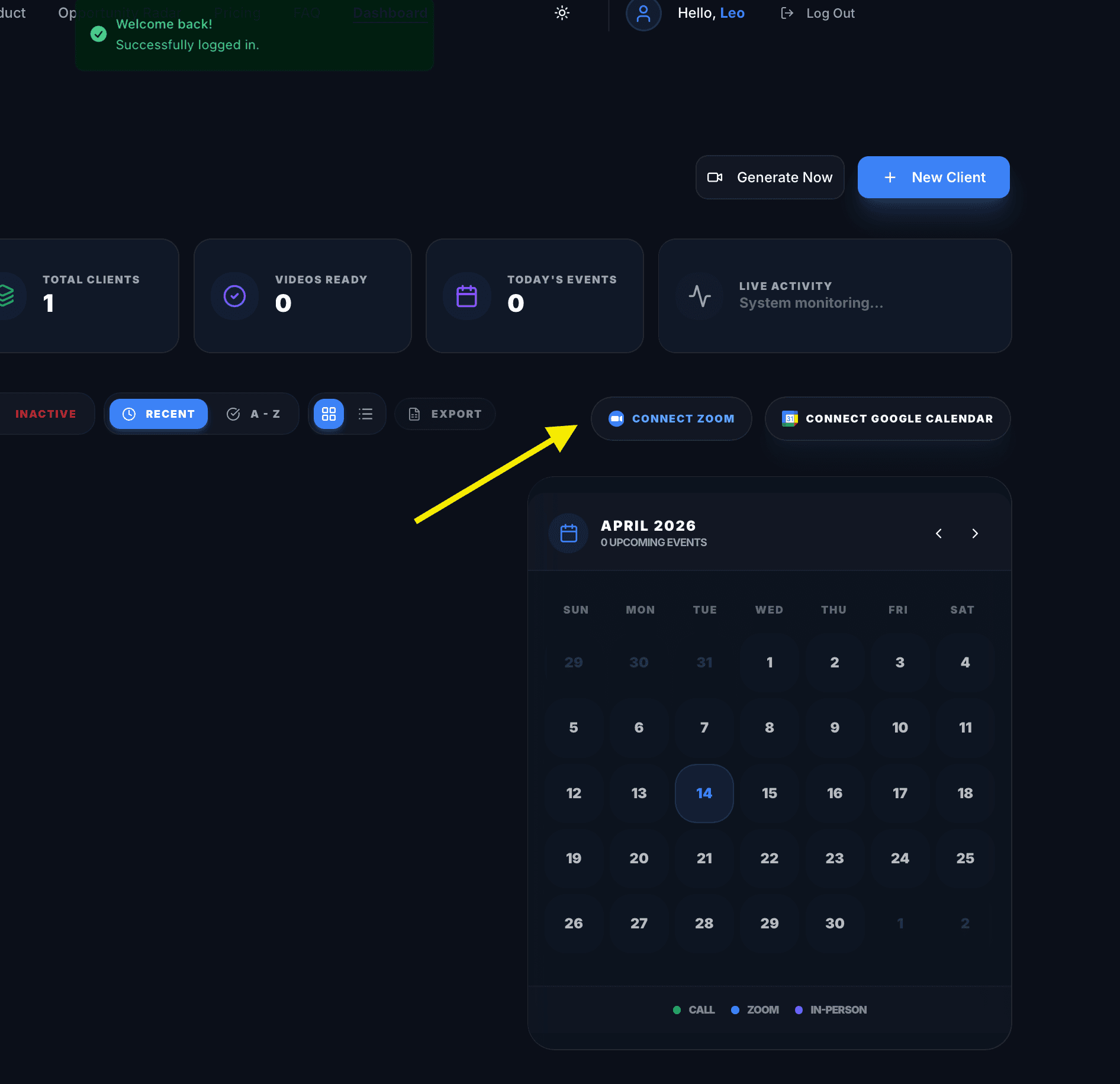
One-Click Connection
From the main dashboard view, locate the Connect Zoom button. VFlow provides direct integration access to minimize configuration friction.
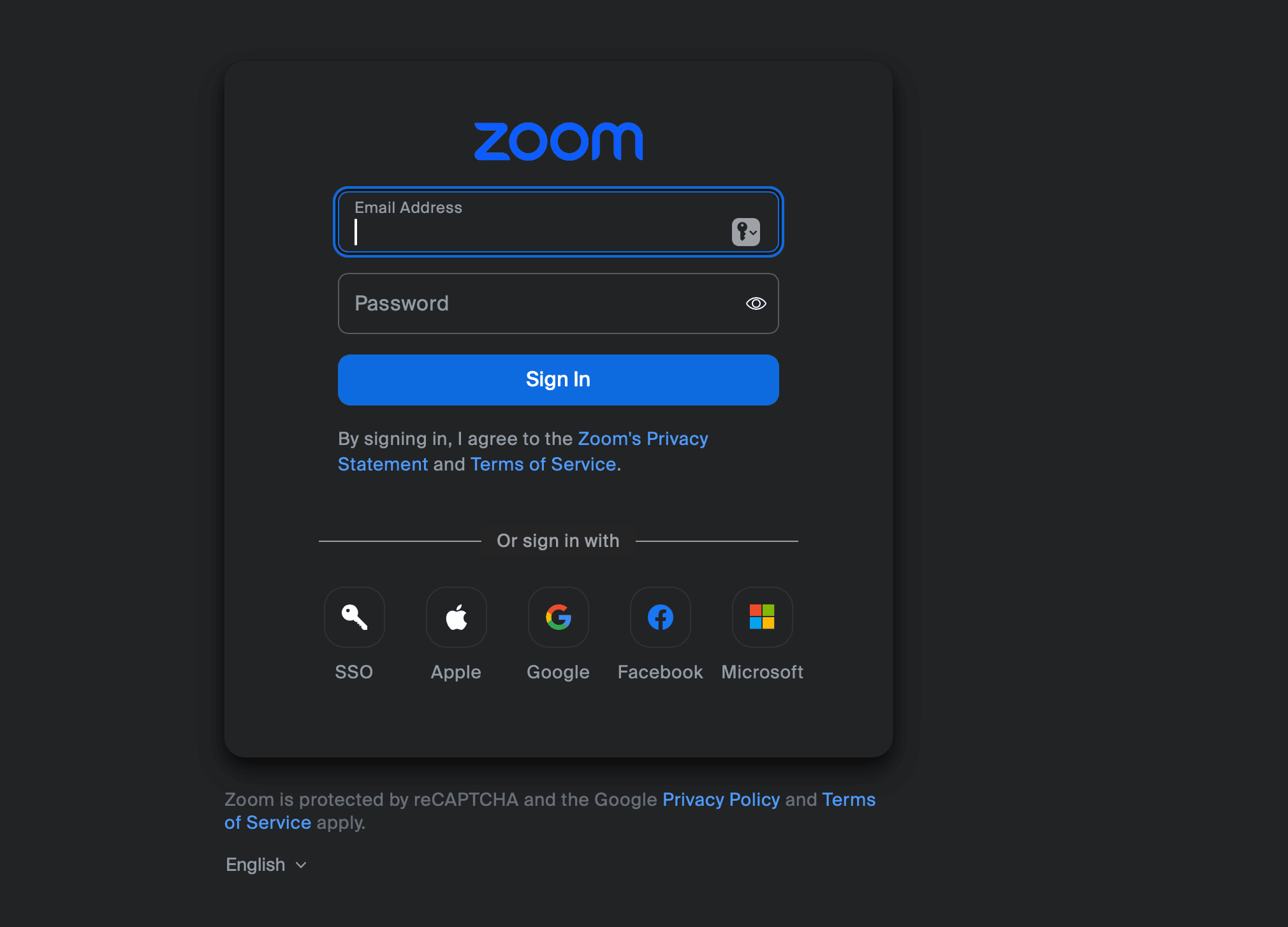
Authorization handshake
You will be redirected to the secure Zoom Authorization page. VFlow requests specific functional scopes to automate your workflow. Click Allow to proceed.
Scope Justification
meeting:write— Used to generate unique IDs and secure join links for new insurance client appointments.meeting:delete:meeting— Used to allow users to securely cancel and delete their automated meetings directly from the VFlow dashboard.user:read— Used to identify the authenticated user and ensure meetings are created in the correct personal Zoom account and time zone.
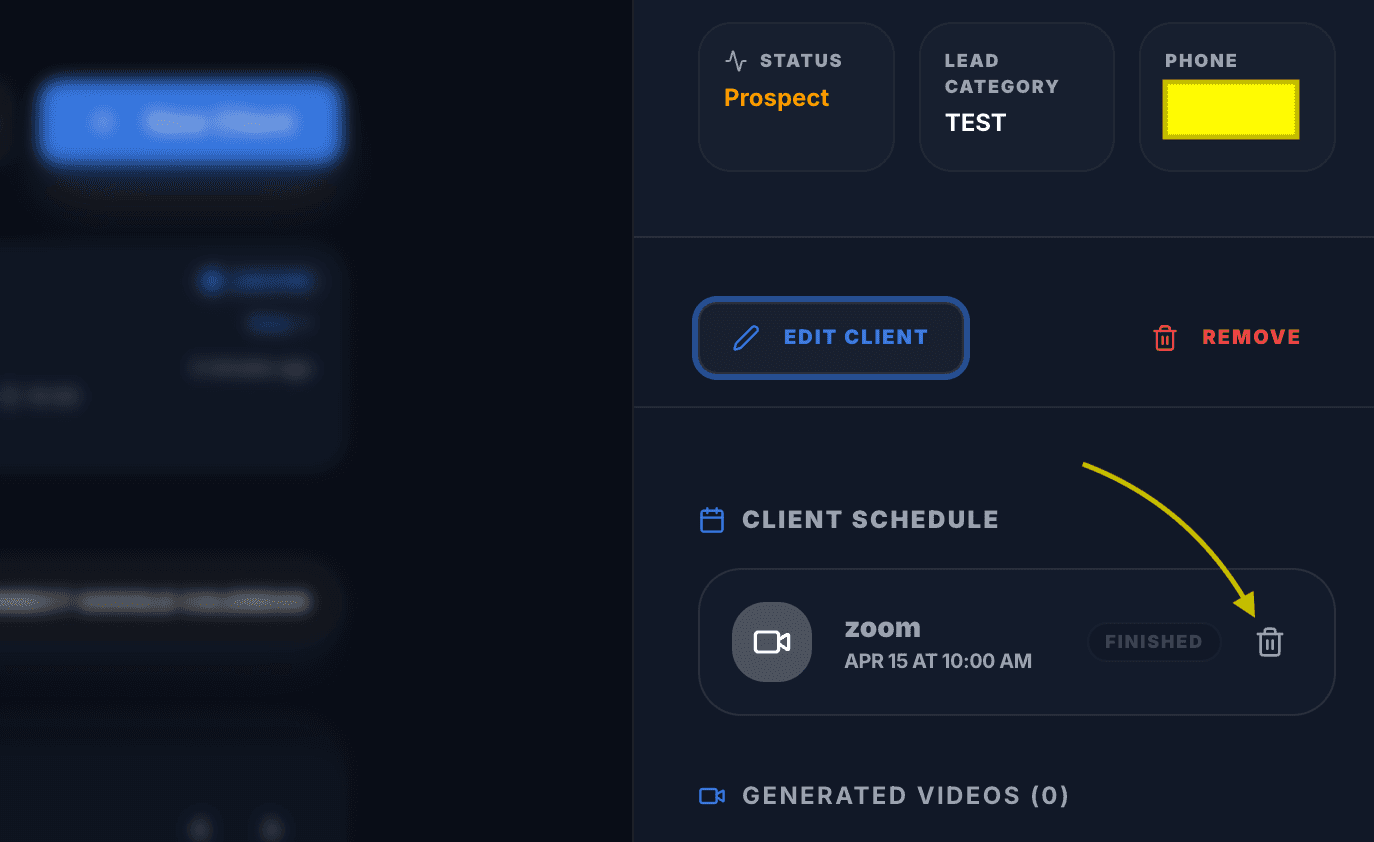
Synchronized Deletion
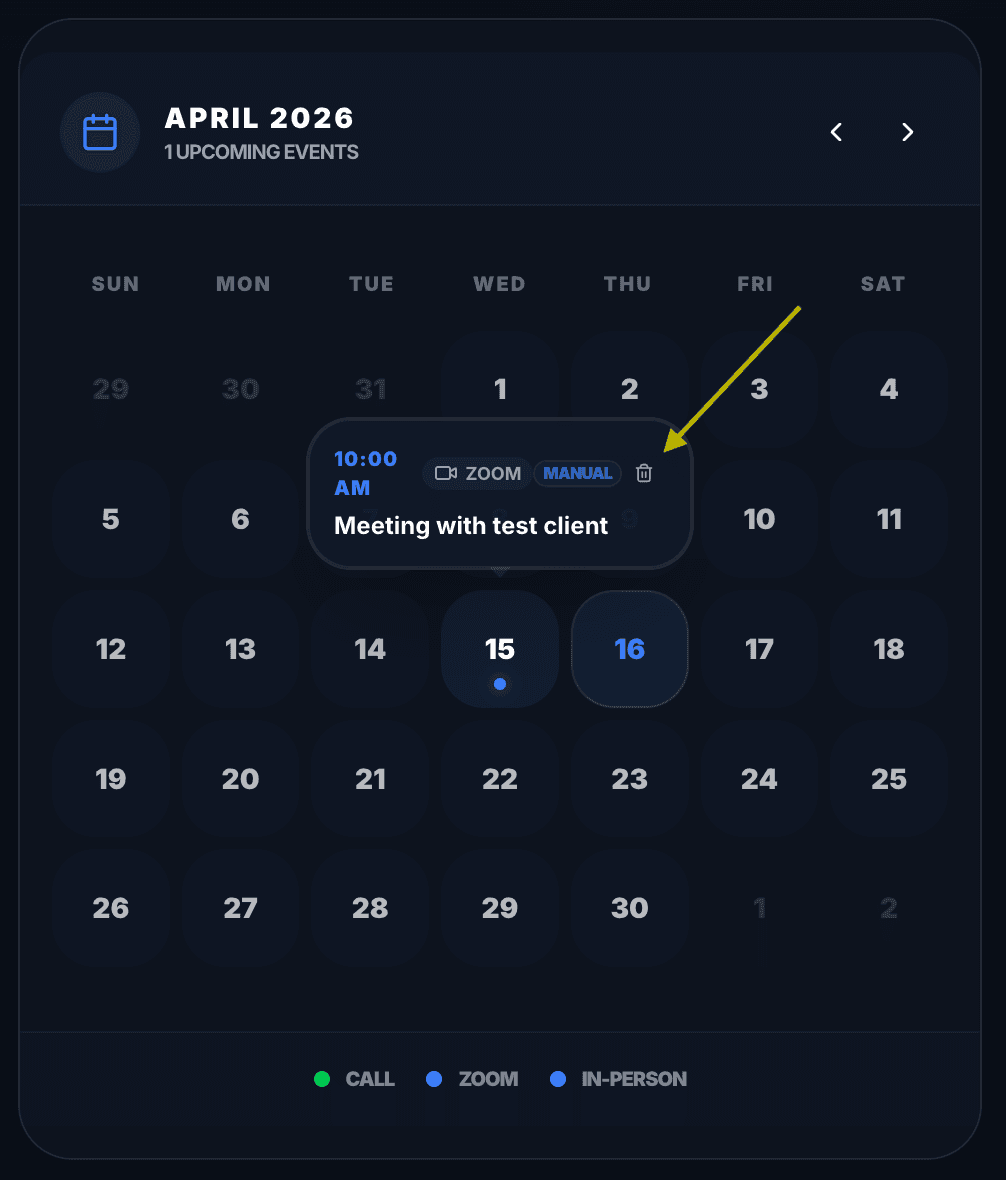
VFlow maintains an active synchronization with your Zoom account. To completely remove an appointment from both platforms simultaneously, simply click the Trash icon.
You can perform this action from two places on your dashboard:
- Inside the global Interactive Calendar widget.
- From the Client Schedule area inside a project's side panel.
Stuck during installation?
Usage & Intent Engine
Automated Meeting Creation
VFlow removes the "scheduling gap" in insurance sales. When an high-intent prospect interacts with your AI Video and clicks 'Book Now', VFlow instantly creates a unique Zoom meeting on your behalf.
Feature: Secure Link Generation. VFlow uses the meeting:write scope to generate meeting IDs and encrypted join links uniquely for each client.
Action: Instant Sync. The meeting is mirrored on your VFlow dashboard, ensuring you never miss an appointment.
Prerequisites
Removing the Application
Option A: Marketplace Removal
- Log in to your Zoom account and navigate to the Zoom App Marketplace.
- Click Manage >> Added Apps or search for the "VFlow" app.
- Select the VFlow app from the list.
- Click Remove to revoke all authorized permissions.
Option B: Internal Disconnection
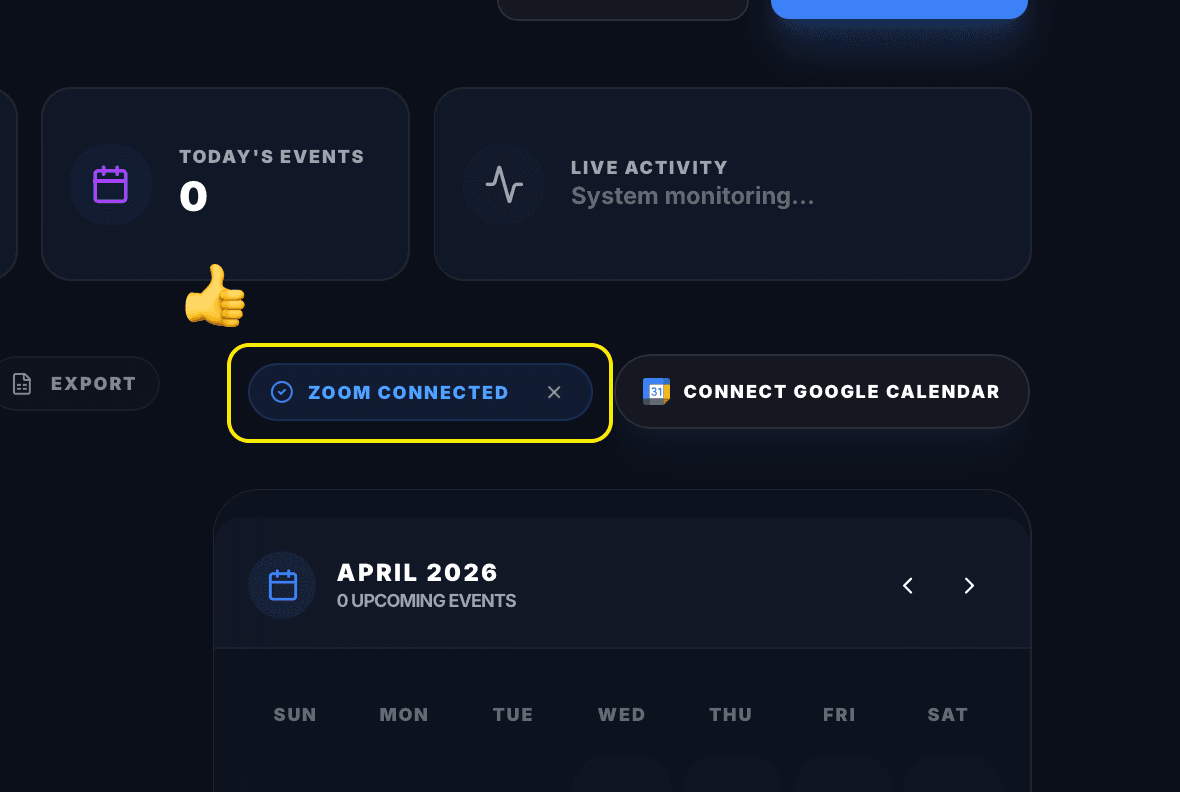
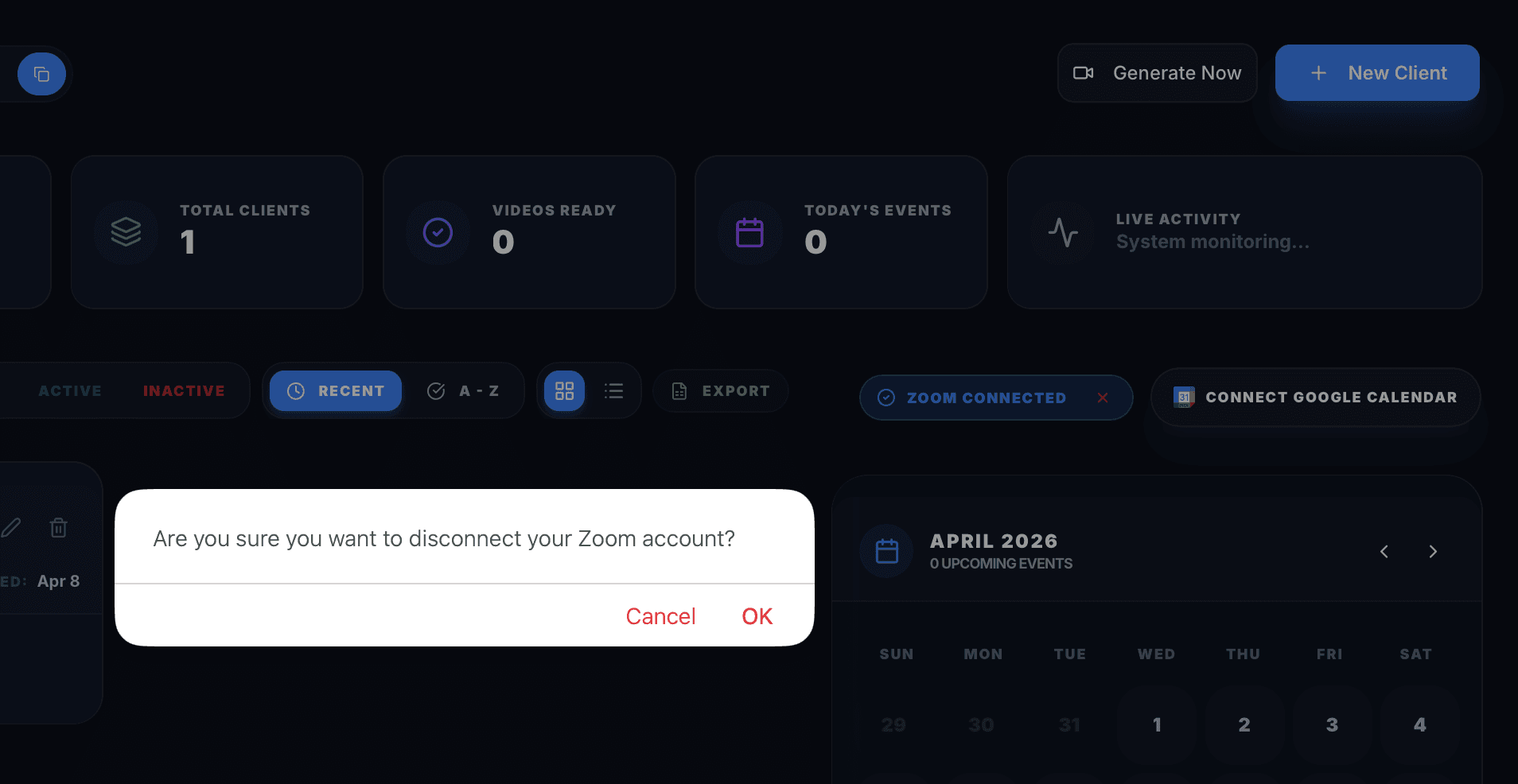
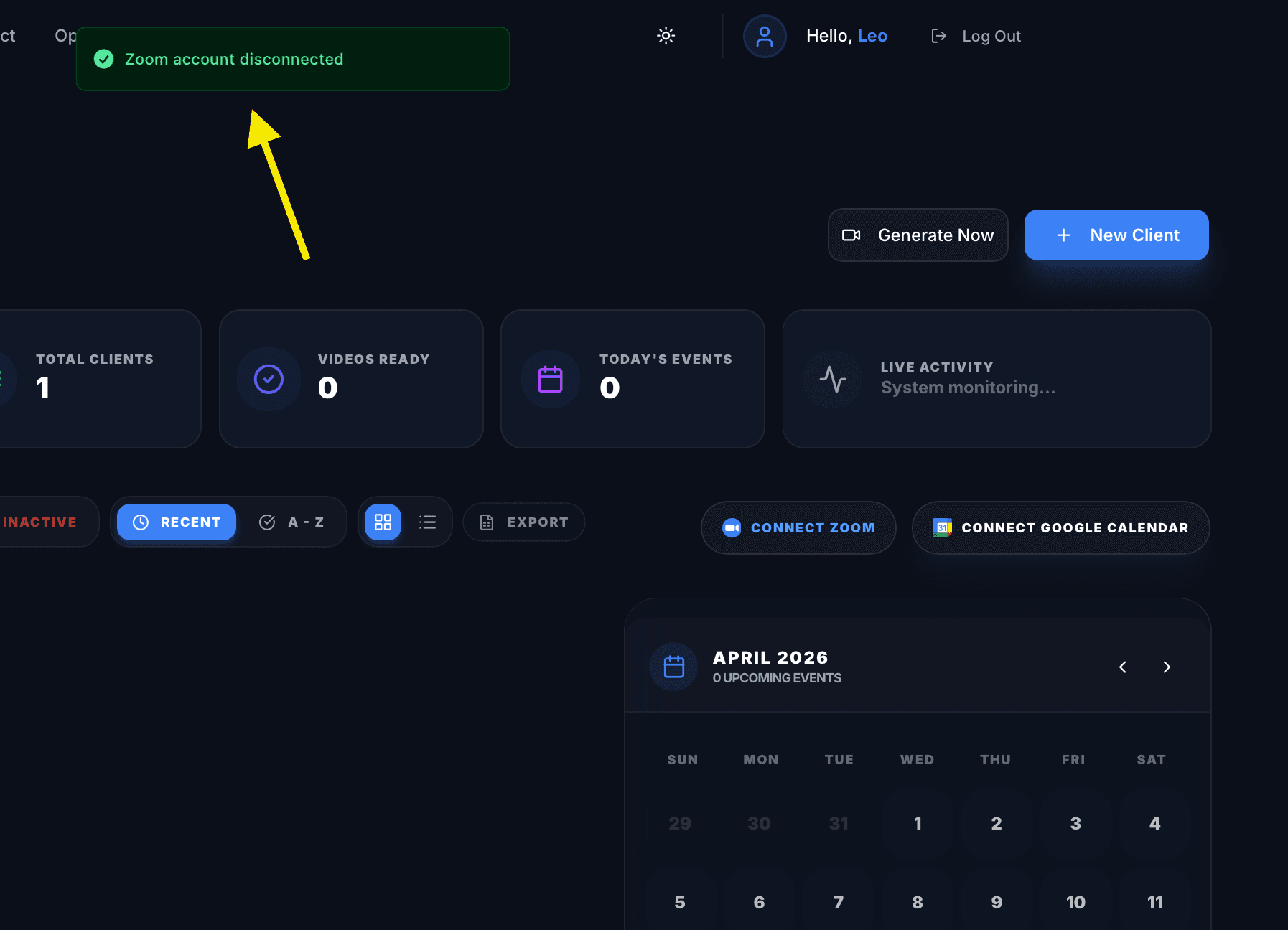
Additionally, you can remove your connection from VFlow directly. Simply click the "Zoom Connected" button on your dashboard and confirm the disconnection.
Impact Analysis
Removing the app terminates the automated scheduling pipeline. VFlow will no longer be able to create meetings on your behalf. Previously scheduled meetings in your Zoom Calendar are not deleted, but the deep-link integration in VFlow is neutralized.
Data Hygiene Policy
Upon revocation of the OAuth token, VFlow marks your connection as 'Inactive'. Meeting metadata (Topic, ID) is archived for 30 days for compliance logging before being permanently purged from our infrastructure.
Session Security & Interlock
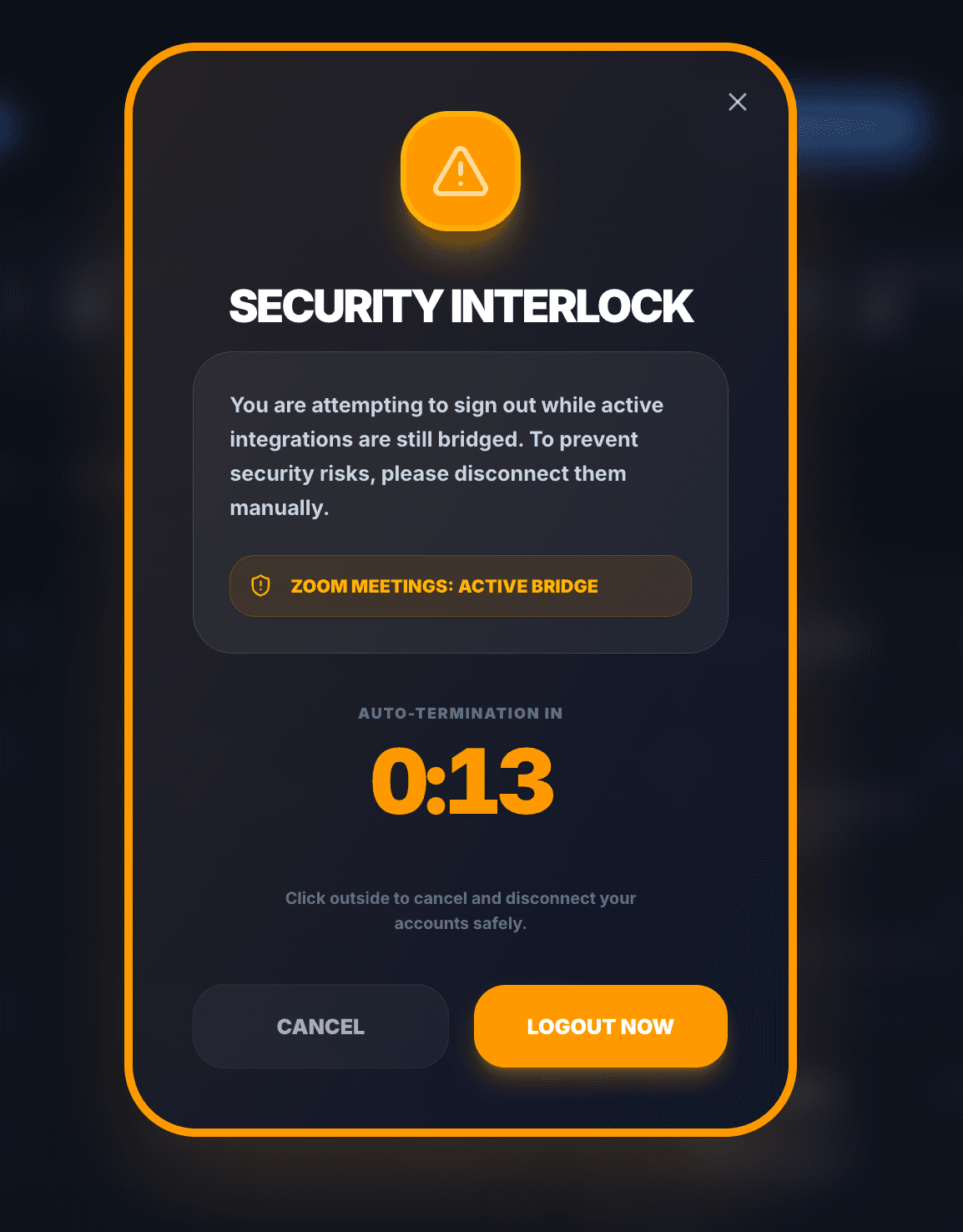
For enhanced security, VFlow implements an Orange Security Interlock. User sessions are limited to 2 hours. If you attempt to logout or your session is within 5 minutes of expiring while Zoom is connected, the System triggers a 15-second countdown alert to ensure you do not leave an active "security bridge" open to your professional account.
This interlock is mandatory for all accounts with active professional bridges (Zoom/Google).
Troubleshooting & FAQ
Problem Solving
Meeting Links for existing clients?
If links are missing for existing clients, ensure they have entered the 'Engagement' stage in the VFlow funnel. Links are only generated upon explicit booking events.
Invalid OAuth State?
This usually occurs if the browser session expires during authorization. Please refresh your VFlow dashboard and try clicking "Connect Zoom" again.
Common Questions
Can I link multiple Zoom accounts?
VFlow currently supports a 1:1 mapping between one VFlow agent profile and one Zoom account for security and audit consistency.
Security of Join Links?
All generated links use Zoom's native encryption and password-protection features by default.
We solve issues in hours, not days.
Our engineering team is prioritized to support Zoom Marketplace reviewers during the vetting process. For immediate technical clarifications, use our direct line.